GETTING STARTED · GUIDE
Start from your AtServiceTech workspace dashboard
After you register or sign in, you arrive at the workspace dashboard at atservicetech.com/app/dashboard. Start there and open the app for the service you want to use.
Sign in and open your workspace
If you already have an account, sign in with your workspace administrator credentials. If you are new, register first. Both successful sign-in and registration take you to the dashboard.
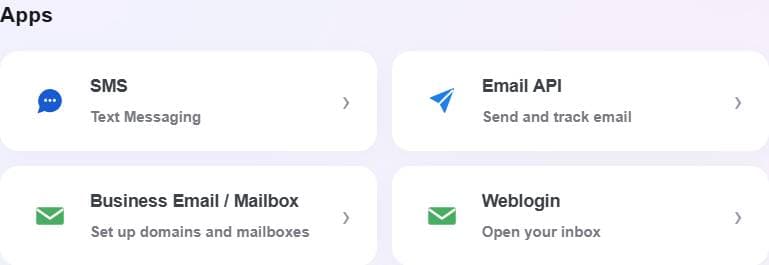
The Apps section has separate tiles for SMS, Email API, Business Email / Mailbox, and Weblogin. Adding a domain is only part of Business Email setup; SMS and Email API have their own setup flows.
Steps
- Open atservicetech.com/app/dashboard. If asked, sign in or choose Create an account to register.
- After signing in or completing registration, confirm that the workspace dashboard is open.
- In Apps, choose SMS for DLT messaging, Email API for application email, or Business Email / Mailbox for domains and mailboxes.
- Choose Weblogin when you already have a mailbox and want to open its inbox.
- New to AtServiceTech? Create a workspace before signing in.
- Workspace administrator credentials are different from mailbox credentials.
- For a new business email domain, continue to Add a domain under Business Email.