WEBMAIL · GUIDE
Set up business email on a mobile device
Use a compatible mobile mail app while your mailbox remains hosted by AtServiceTech. These settings are for Gmail on Android; other clients use similar IMAP settings.
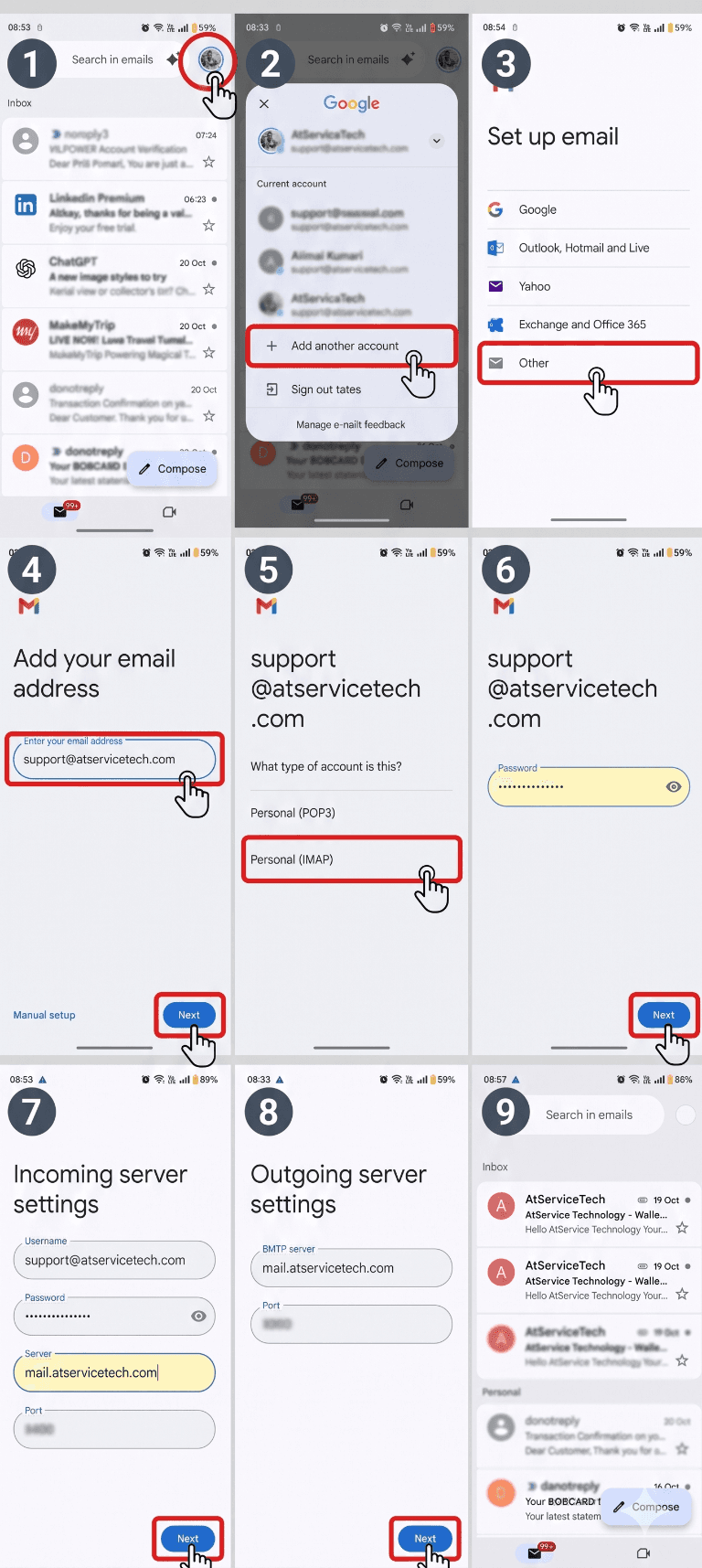
Gmail for Android using IMAP
If your mailbox uses 2FA, create an app password in Webmail → Settings → App passwords and use it instead of your regular password in the mail app. Do not choose POP3; IMAP keeps messages synchronized across devices.
If your administrator configured a different mail hostname, use the server name they provided.
Steps
- In Gmail, tap your profile picture, then Add another account → Other.
- Enter the complete mailbox address and choose Personal (IMAP).
- Incoming server: mail.atservicetech.com; username: full email address; port 993; SSL/TLS.
- Outgoing server: mail.atservicetech.com; username: full email address; port 587; STARTTLS; SMTP authentication required.
- Finish setup and send a test message.